Troubleshoot dashboard and reports
Check missing totals or report differences without changing the underlying records.
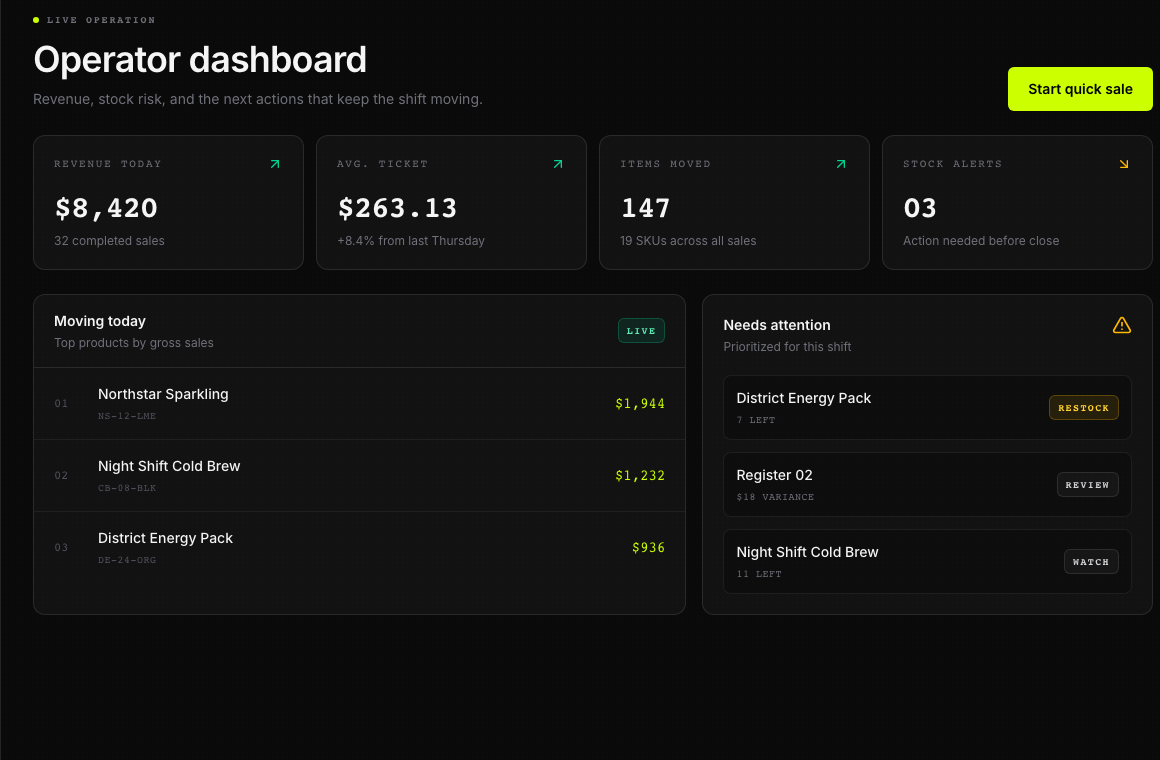
A total looks wrong
Confirm the active business.
Open Orders & Receipts and look for the saved sale. Check Sale Details, including its date, status, payment method, items, and total.
Open Reports and read Window:. Match the report period before comparing totals. A view labelled Daily totals (UTC) uses UTC, which may differ from your local day.
Check whether you are comparing sales, money received, amounts owed, or profit. They are different figures.
Check costs and delivery expenses when reviewing profit. A missing cost or a pending correction needs review; do not invent a cost to make the total match.
The recent orders list is limited to 50 entries. An order missing from that list is not proof that it was deleted.
A page is empty or fails to load
Read any error first. Confirm your connection and reopen the page once. If the page still fails, ask the owner to check your report access. Keep the original records unchanged.
An empty Insights view does not confirm zero sales. Check saved orders separately. If you cannot verify a total, do not use it as a final reconciliation figure.
An export fails
Stay signed in to the correct business and try Export reconciliation CSV from Reports. If the download fails or contains unexpected data, stop sharing it and contact private support. Do not change access settings to make the download work.