Customers and store credit
Keep customer records minimal and record payments against the correct open balance.
Before you start
Confirm the business, your customer and credit permissions, and the shop's approved credit policy. Store Credit in web navigation opens Credit Management. Here, credit means an amount a customer owes for later payment; it is not a gift card or proof that money was received.
Find or add a customer
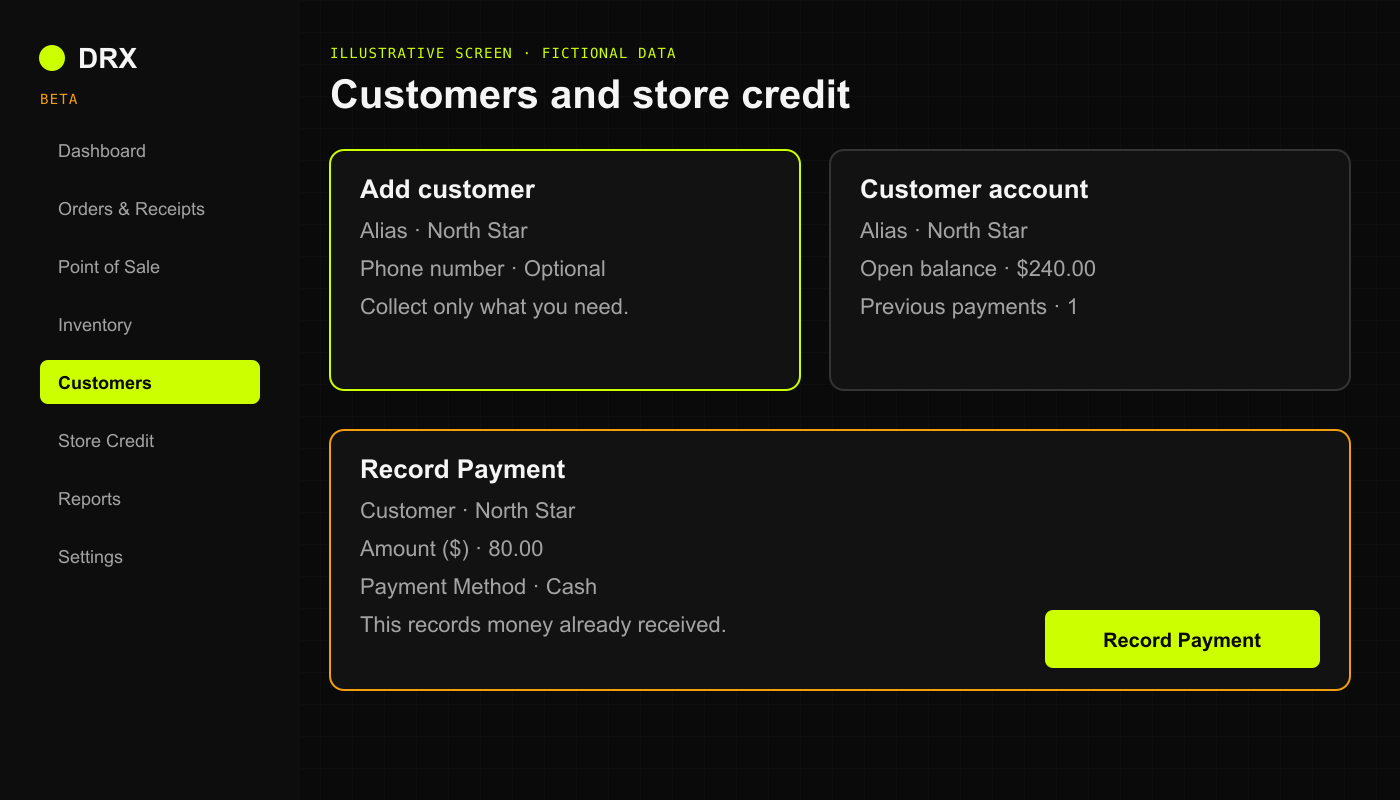
Open Customers and search for an existing profile before adding another.
Use Add customer when you have permission and no matching profile exists.
Enter the alias or other details allowed by the business's privacy settings. Leave unrelated optional information blank.
Review the fields, choose Add once, and check the saved profile in the same business.
If a form requires contact information that your privacy policy does not allow, stop and ask the owner to review it. Do not enter fake information or weaken privacy settings to pass validation.
Attach a customer at checkout
In Point of Sale, use Customer (Optional).
Enter the existing Alias or an allowed Phone number, then choose Lookup.
Select the matching customer and confirm Attached: before continuing.
Choose CREDIT only when offered and approved. Review the total and select Confirm credit charge before Complete Sale.
Quick Create currently asks for a phone number. Do not use it for an alias-only record when collecting that number conflicts with the business's privacy policy. A sale without a customer still creates sales records.
Record a payment toward an existing balance
Confirm the payment was actually received through the shop's approved process.
Open Store Credit and choose Record Payment.
Select Customer, enter Amount ($), and choose the matching Payment Method: Cash, Check, Transfer, or Other.
Use Notes only for a necessary reference. Do not enter card numbers or account credentials.
Check the amount and previous payments, then choose Record Payment once.
Reopen the account and confirm the saved payment and remaining balance before recording anything else.
This action records a received payment. It does not transfer money. Do not create a new sale to record repayment of an old balance.
What happens next
Have an authorized manager review unexplained balances, overdue amounts, or limit changes against the saved records. Do not raise limits or split a charge to bypass a restriction. Notes, loyalty, and related beta controls are available only where enabled; they are not required for a basic customer record.