Troubleshoot inventory and audit
Check failed intake, incorrect counts, or missing movements before submitting another change.
Intake will not save
Confirm the business and permission to manage Inventory.
Select Product, enter a positive Total Cost, and check the received quantity and displayed unit.
Read the validation message. Correct the named field before Review & Process Intake and Confirm Intake.
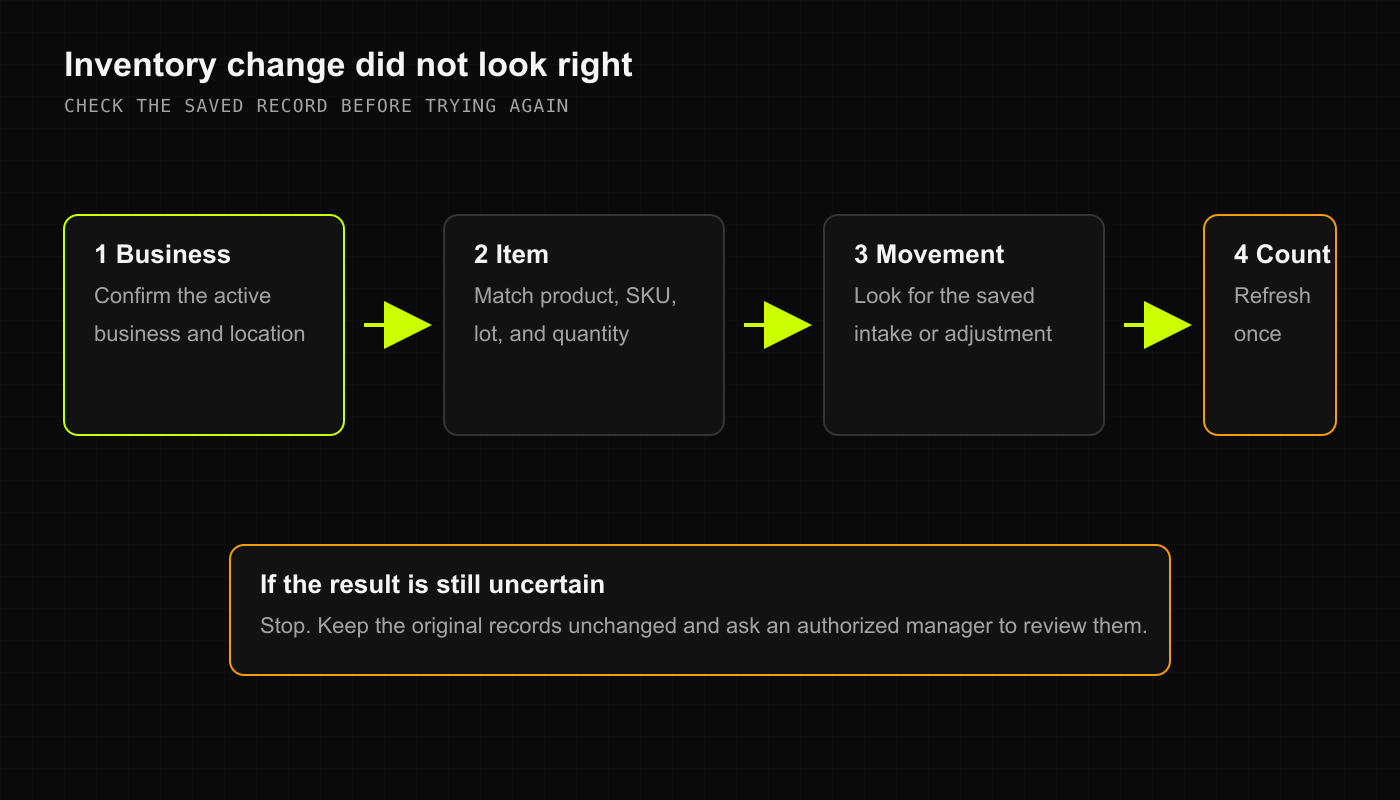
If you already submitted, check the saved result before trying again.
Do not invent a cost or switch units just to pass validation. The current intake requires a positive cost; ask the owner how to handle goods that do not fit that rule.
A saved change did not affect the count
Check whether the intake result requires approval. Ask an authorized approver to review it. A request awaiting approval is not proof that Inventory has increased.
For an adjustment, open Stock history from Inventory and compare the product, action, quantity, reason, and time with the current count. Check recent sales and other changes too. Do not repeat Add (+) or Remove (-) because a page looks unchanged.
An adjustment is rejected
On Adjust inventory, check Select Product, Action, Quantity, and Reason. Set Quantity To expects the final count; Add (+) and Remove (-) expect the amount of change. Use the product's displayed unit and resolve the actual error shown.
Inventory could not refresh
The page may show previously loaded items after a refresh fails. Check its error message and connection, then use Refresh once. Do not treat an old count as a verified current count.
If movement history is unavailable or the result remains uncertain, stop making corrections and ask private support to investigate. Do not change a threshold, supplier label, or count to hide the difference.